Define the fields
Define the fields
The first step is to define the form fields.
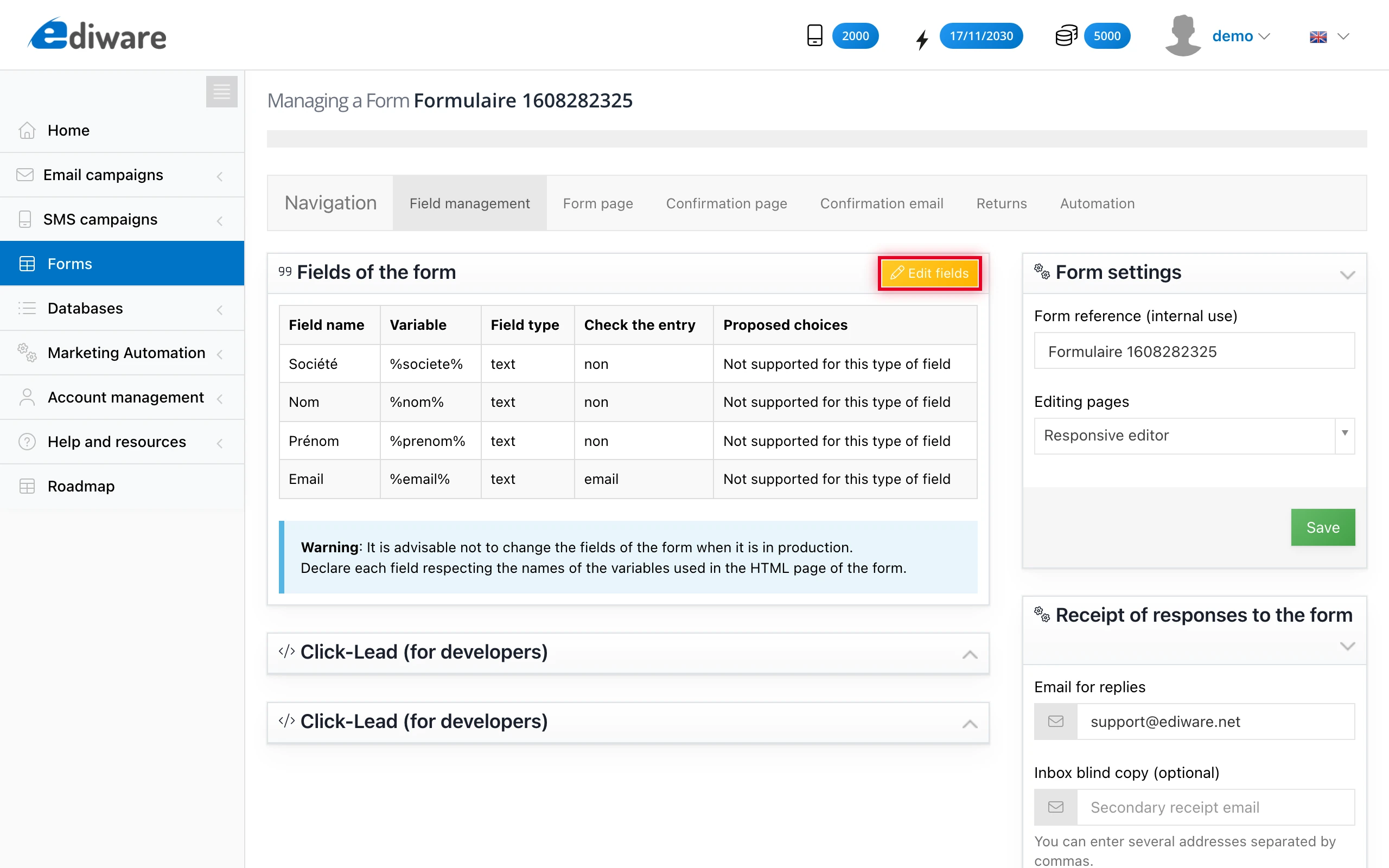
The name of the fields is free. The second column presents the variable names to be used in the HTML page containing the form in order to display the fields at the desired location.
Warning: You must also create a “submit” field so that users can validate the form. The standard button proposed by default can be customized thanks to an image in GIF format in the right part of the interface, heading: “Validate button”.
To define the fields, click on the “Edit fields” link.
The different types of fields
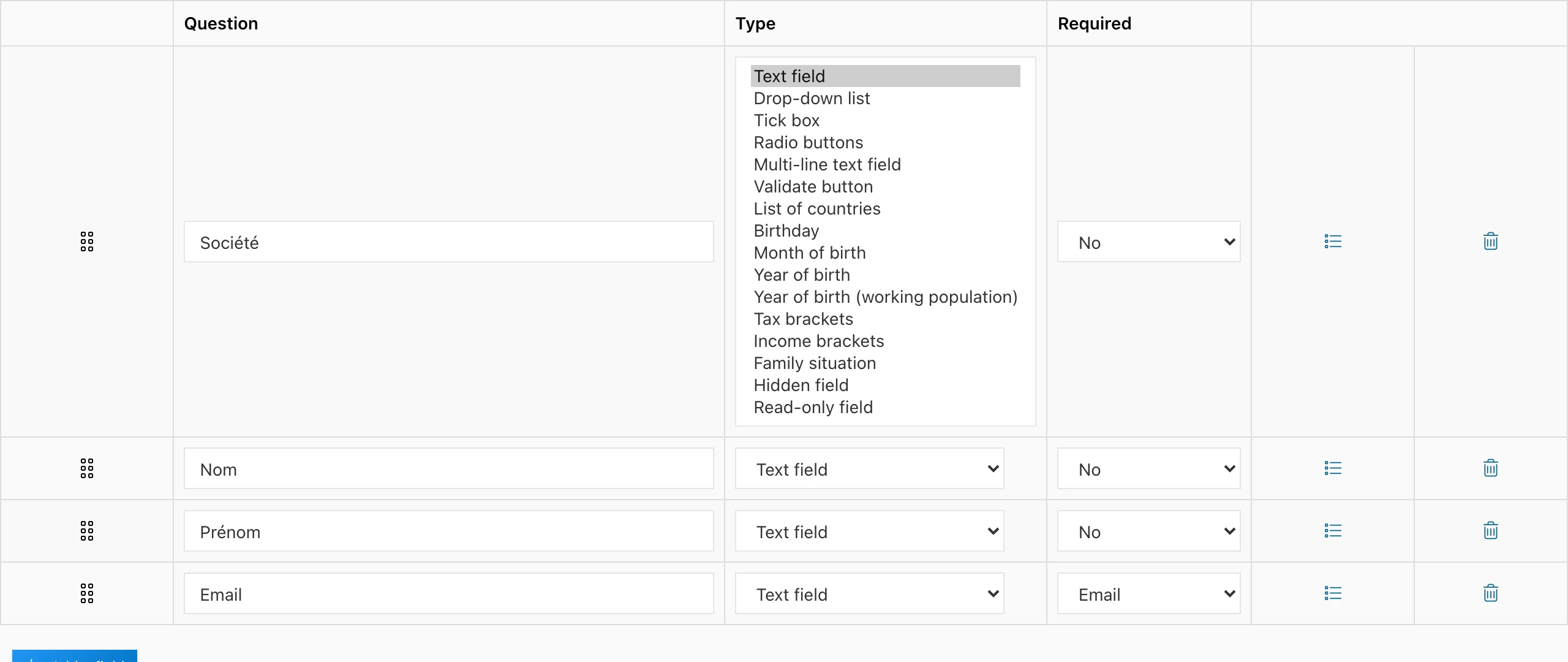
Standard fields
- Drop-down list
To define the different possible values of the drop-down list, click on the second last button of the line (the edit button).
- Tick box
- Multi-line text field
- Validate button
Drop-down lists with predefined values
- List of countries
- Birthday
- Month of birth
- Year of birth
- Tax brackets
- Income brackets
- Family situation
Required
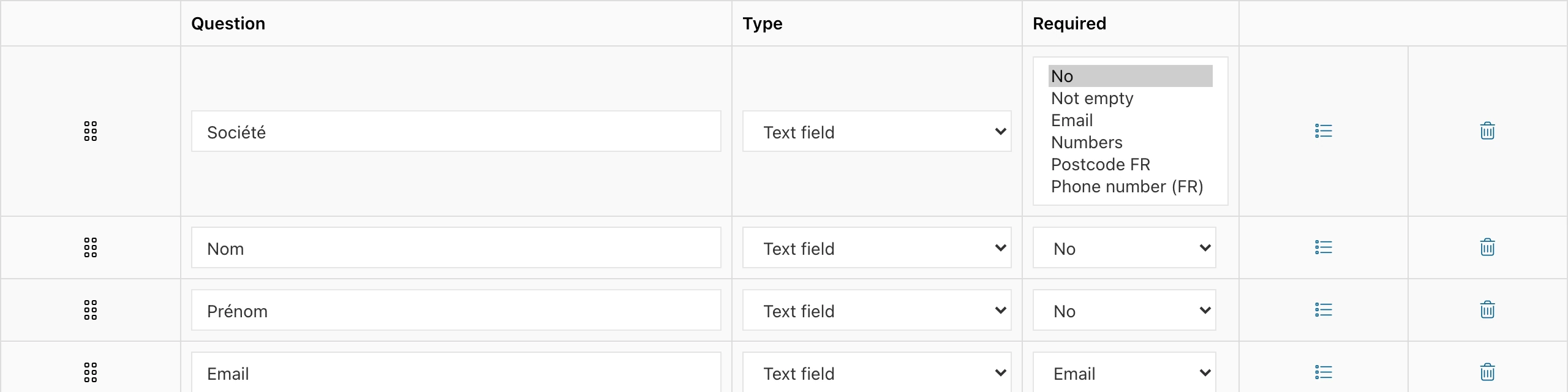
The “required” column allows you to force the prospect to fill in the field with a predefined language.
For example, when selecting “email”, if there is no arobase in the prospect’s text, the form cannot be validated.
Email reception
Enter an email address if you wish to receive a copy of the forms filled out by Internet users.