Personalization
Introduction
Some general parameters of a campaign, as well as the body of the message, can include personalization variables.
When the campaign is sent, these variables are replaced with the corresponding value from the recipient file.
Beyond the email address, the recipient file can contain 26 columns, so 26 personalization variables are available.
Build a campaign with personalization
Building a test file
Start by building a small file with test recipients.
Place the email address in the first column. In the additional columns, place whatever information you want. The order and type of information do not matter, but each column must contain consistent information from the start to the end of the file (for example only phone numbers, or only names).
In this example, the first row contains headers. This row is fully optional, it just helps you find your way around when building the file. It will be discarded during import anyway, since the email will be considered invalid.
We then save this Excel file as CSV (semicolon separator).

Warning: Make sure to select CSV (semicolon separator), not CSV (Macintosh), (Windows) or (DOS), etc.
Opened in a text editor, the file should look like this:

Identify the personalization variables
Import the test CSV file into the MDWorks platform (after emptying the recipient file if one was already imported. The recipient file of the test campaign should only contain the test addresses).

Click on “View”.
This page displays the first 20 entries of the recipient file.
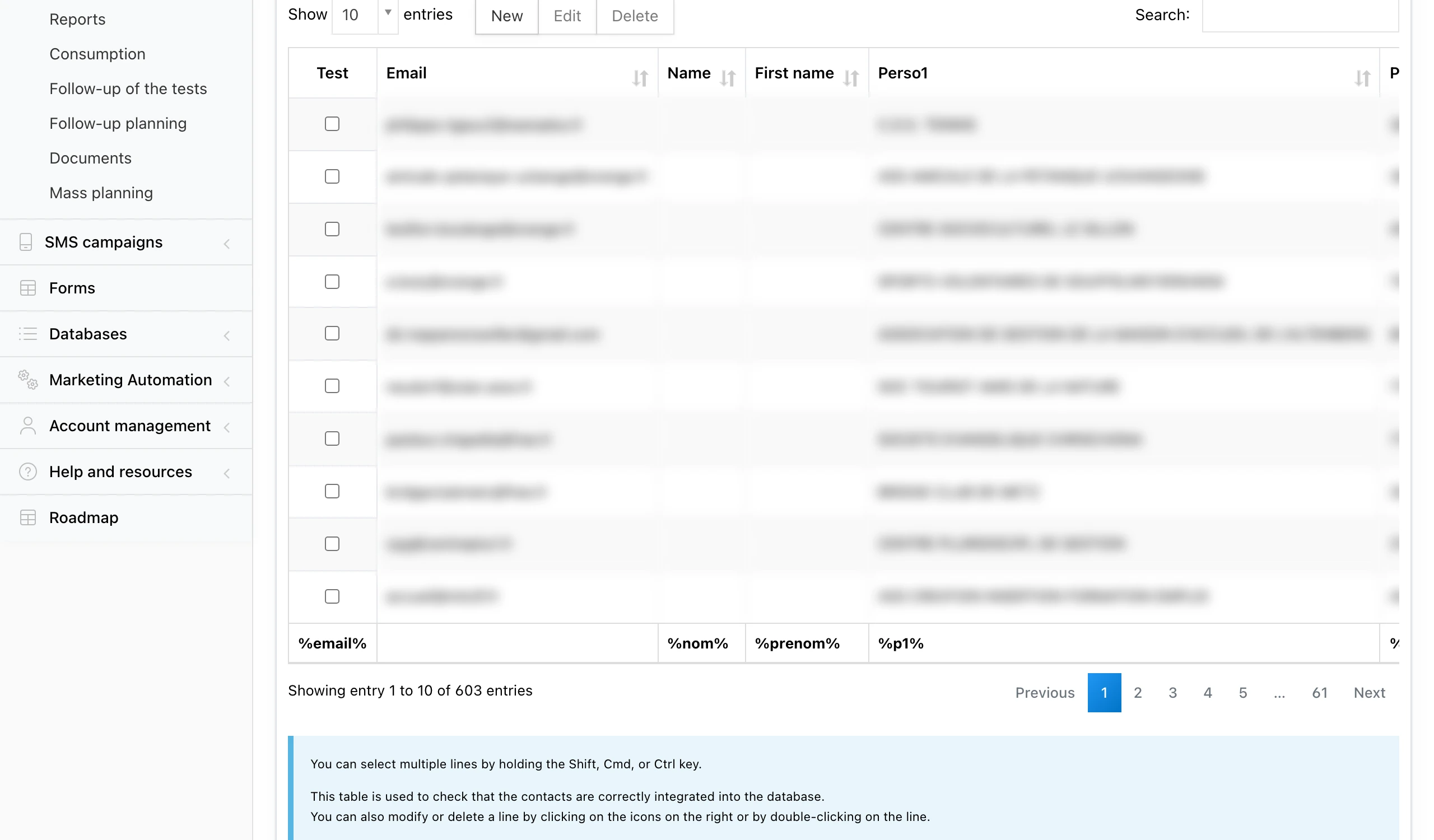
The last row of the table contains the personalization variables to use to personalize the message.
The two variables %nom% and %prenom% can correspond to something other than last names and first names. We just kept these two variable names to ensure compatibility with earlier versions of the platform where only these two variables were available.
You can edit a row by double-clicking it.*
Use the checkbox on the right of a row to mark that this email address will be used during the personalized BAT (cf. Test the campaign)
Use the personalization variables
In this example, if I want to display “Mister Loïc Bresler” somewhere in my message, the code to use is:
%p1% %prenom% %nom%When sending the message, the platform replaces each personalization variable with the corresponding value from the file.
This also applies if the value is empty (for example if you are missing information for some people in the recipient file).
What can be personalized?
Personalization variables can be placed:
In the body of the message, anywhere, including inside a URL (to display different images or offer different links depending on the value of a personalization variable).
In the subject
For example to display in the subject: Offer reserved for Mister X
- In the sender name and the response email
Example: each sales rep in a company has their own prospect file.
The company wants each prospect to receive an email from their sales rep and to be able to reply directly.
The recipient file will contain, in addition to each contact’s email, the name of the assigned sales rep and the corresponding response email.
- The recipient name
This advanced option lets you personalize the “To” field (recipient) that appears in the recipient’s email client.
It allows displaying the variable content, for example “Mister X” (recipient) instead of their email address.
The interest of such personalization is limited and serves a specific goal:
Make it look like the email was sent manually from a regular email client and that the recipient is in the sender’s address book.