AI Assistant
Ediware’s AI Assistant is your smart copilot for creating, improving and optimizing your email campaigns in just a few clicks. This feature analyzes your content, applies changes and generates optimized messages based on your specific needs.
Overview
What is the AI Assistant?
The AI Assistant is a tool integrated into your campaign editor that:
Smartly integrates your new content into your existing templates
Improves your messages based on precise criteria (spelling, style, formatting)
Modifies the appearance of your emails (colors, typography, design)
Automatically translates your campaigns into multiple languages
Key benefits
✅ Time saving: Create campaigns 5x faster ✅ Professional quality: Messages and design optimized by AI ✅ Total flexibility: From content to appearance, everything is customizable ✅ Multilingual: Translate your campaigns in one click
Accessing the AI Assistant
Step 1: In the campaign editor
- Create or open an existing email campaign
- In the Message section, click on the “AI Assistant” button in the toolbar
- The AI Assistant window opens

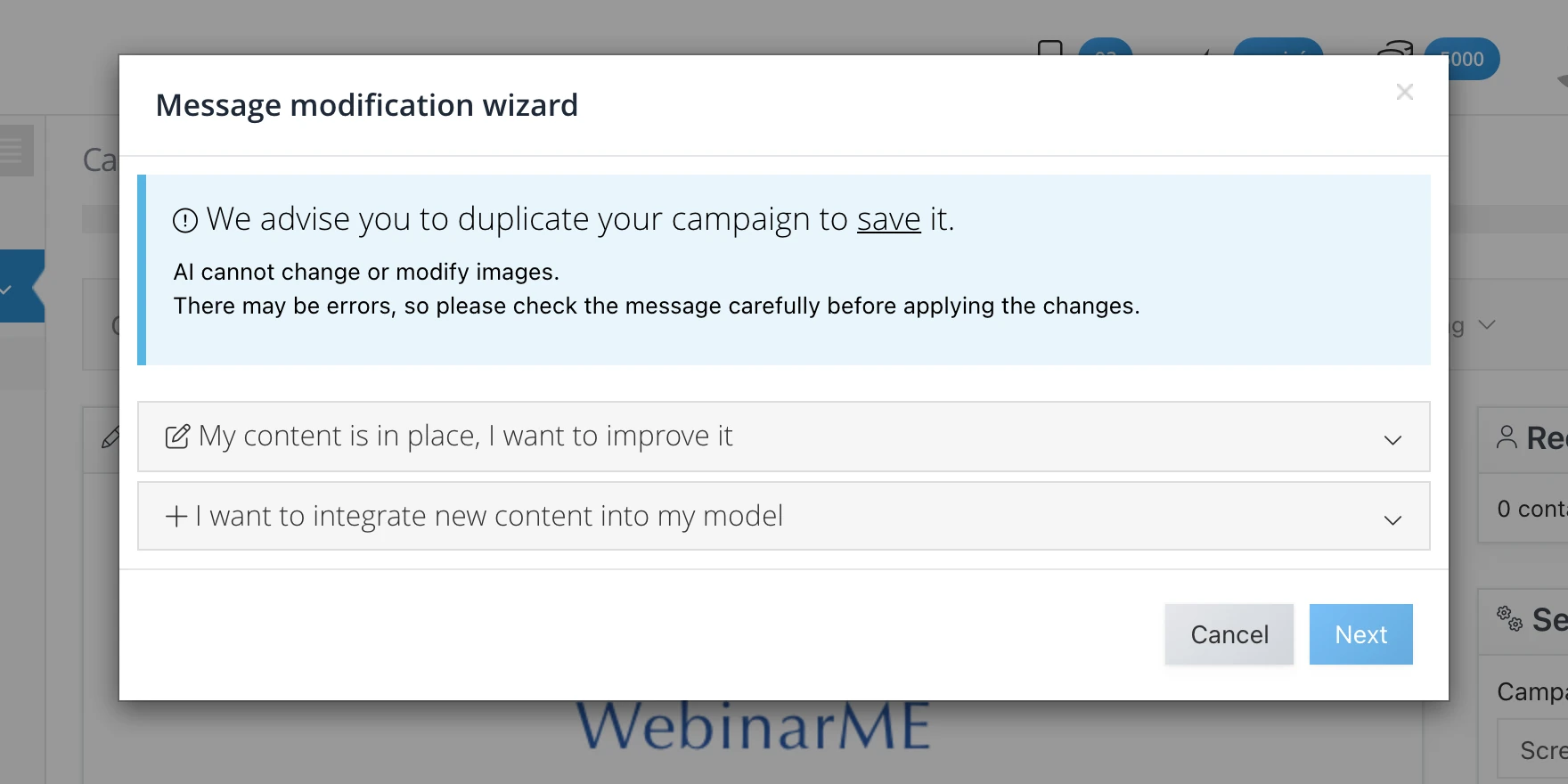
Step 2: Choose how to use it
Two modes are available:
Mode 1: Create new content
How does it work?
The AI Assistant smartly integrates your new content into an existing design, preserving visual coherence while optimizing presentation.
Detailed steps:
- Select “I want to integrate new content into my template”
- Choose your design base: - An Ediware template: More than 120 professional templates - A previous campaign: Reuse a design that has already proven itself - Your custom template: Use your own creations
- Provide your content: - Paste your text directly into the editor - Import a file (Word, PDF, TXT) - Copy from a URL to reuse web content
- The AI analyzes and integrates: - Automatically detects sections (titles, paragraphs, CTAs) - Adapts the layout to the chosen design - Optimizes spacing and visual hierarchy - Preserves the template’s graphic charter
Example use case:
Need: Integrate your new training program into your monthly newsletter
Process:
- Select your usual newsletter template
- Paste the announcement text
- The newsletter design is preserved with the new content perfectly integrated
Mode 2: Improve existing content
Overview of possibilities
The AI Assistant can transform your existing content along 4 main axes:
1. Graphic and visual modifications
Color changes
- Full palette: Modify the main colors of your campaign
- Specific colors: “Change the button color to blue #0066CC” (use a hex color for more precision).
- Predefined themes: “Apply an autumn palette”
Text formatting
- Typography: “Set all titles in Arial Black”
- Sizes: “Increase the main text size to 16px”
- Styles: “Bold all prices” or “Underline important dates”
- Alignment: “Center all titles” or “Justify paragraphs”
2. Content corrections and optimizations
Spelling and grammar correction
- Automatic detection and correction of mistakes
- Punctuation improvement
- Standardization of upper/lower case
- Verification of agreement consistency
Copywriting optimization
Use predefined or custom prompts:
- AIDA copywriting: Attention-Interest-Desire-Action structure
- PAS copywriting: Problem-Agitation-Solution
- FAB copywriting: Features-Advantages-Benefits
- Professional tone: B2B adaptation
- Adding CTAs: Integration of impactful calls to action
3. Multilingual translation
Available languages
The Assistant can translate your entire campaign:
- English
- Spanish
- German
- Italian
- Portuguese
- Dutch
- 20 other languages
Example translation prompt:
`"Translate all texts to English"
`
4. Smart combinations
You can request several modifications simultaneously:
Example combined prompt:
`"Translate to English, change the main color to corporate blue #003366,
fix spelling and make the tone more professional"
`
Practical guide by use case
Case 1: Adapt a campaign for international markets
Situation: You have a successful campaign in French to deploy in Spain
Process:
- Open your French campaign
- Activate the AI Assistant
- Ask: “Translate everything to Spanish and adapt cultural references”
- The AI translates and adapts (e.g., “Rentrée scolaire” -> “Vuelta al cole”)
- Validate and adjust if needed
Case 2: Refresh an old campaign
Situation: Reuse last year’s campaign with an updated look
Process:
- Load the old campaign
- Ask: “Modernize the colors, use a more dynamic palette and update the dates (today is …)”
- The AI applies trendy colors while preserving the structure
- Content is automatically updated
Case 3: Correct and professionalize
Situation: Email written quickly that requires a complete review
Process:
- In the Assistant, select: - ✅ Fix spelling - ✅ Professional tone - ✅ Add a CTA
- Add: “Bold the key points”
- The AI corrects, restructures and formats
Prompt examples
Graphic commands
| Action | Syntax | Example |
|---|---|---|
| Global color | "Change the main color to [color]" | "Change the main color to green #00AA00" |
| Element color | "Set [elements] to [color]" | "Set titles to navy blue" |
| Typography | "Use [name] font for [element]" | "Use Arial for all text" |
| Text size | "Increase/Decrease the size of [element]" | "Increase the size of subtitles" |
| Text style | "Set [elements] in [style]" | "Italicize quotations" |
Content commands
| Action | Syntax | Example |
|---|---|---|
| Translation | "Translate to [language]" | "Translate all texts to German" |
| Correction | "Fix spelling and grammar" | - |
| Tone | "Make the tone more [adjective]" | "Make the tone more friendly" |
| Structure | "Restructure using [method]" | "Restructure using AIDA" |
Expert tips
For new content integration
- Prepare your content - Structure with clear titles - Identify your main CTAs - The AI will better understand the hierarchy
- Choose the right template - Newsletter -> for editorial content - Promotion -> for commercial offers - Notification -> for short messages
For visual modifications
- Be precise with colors - Use hex codes (#FF0000) - Or standard names (red, navy blue)
- Group your requests - “Change all buttons to orange and increase their size” - More efficient than several separate requests
Frequently asked questions
Q: Can the AI create a design from scratch? A: No, it optimizes and adapts existing designs (templates or older campaigns).
Q: Are translations professional? A: Yes, the AI uses advanced translation models. For very technical content, a review is still recommended.
Q: Can I undo the changes? A: Yes, you can always preview the proposed new version and choose whether to apply it or not. We recommend duplicating your campaign before using the AI Assistant.
Q: Does the Assistant understand my graphic charter? A: It can rely on it! Use a previous campaign as a base.
Q: How many languages are available? A: More than 25 languages, covering 95% of your international needs.
Advanced prompt examples
For a full redesign
`"Modernize the design with a blue-gray palette, improve mobile readability,
translate to British English and add a more visible CTA"
`
For a seasonal adaptation
`"Adapt the colors for Christmas (red and green), add festive emojis
in titles and make the tone warmer"
`
For an international version
`"Translate to Spanish, adapt prices in euros, change the date format
(DD/MM/YYYY) and use a more formal tone for the Spanish market"`
Pro tip: Save your favorite prompts in a document to reuse them quickly.