Create a segment
The creation of a segment will allow you to import only a part of your contact list into your campaign. Thus, if you regularly send a campaign to only a part of your contacts, the creation of this segment has all its interest.
To create a segment, press “Create Segment”, a pane appears. You then name the segment and choose the database on which the segment will take place.
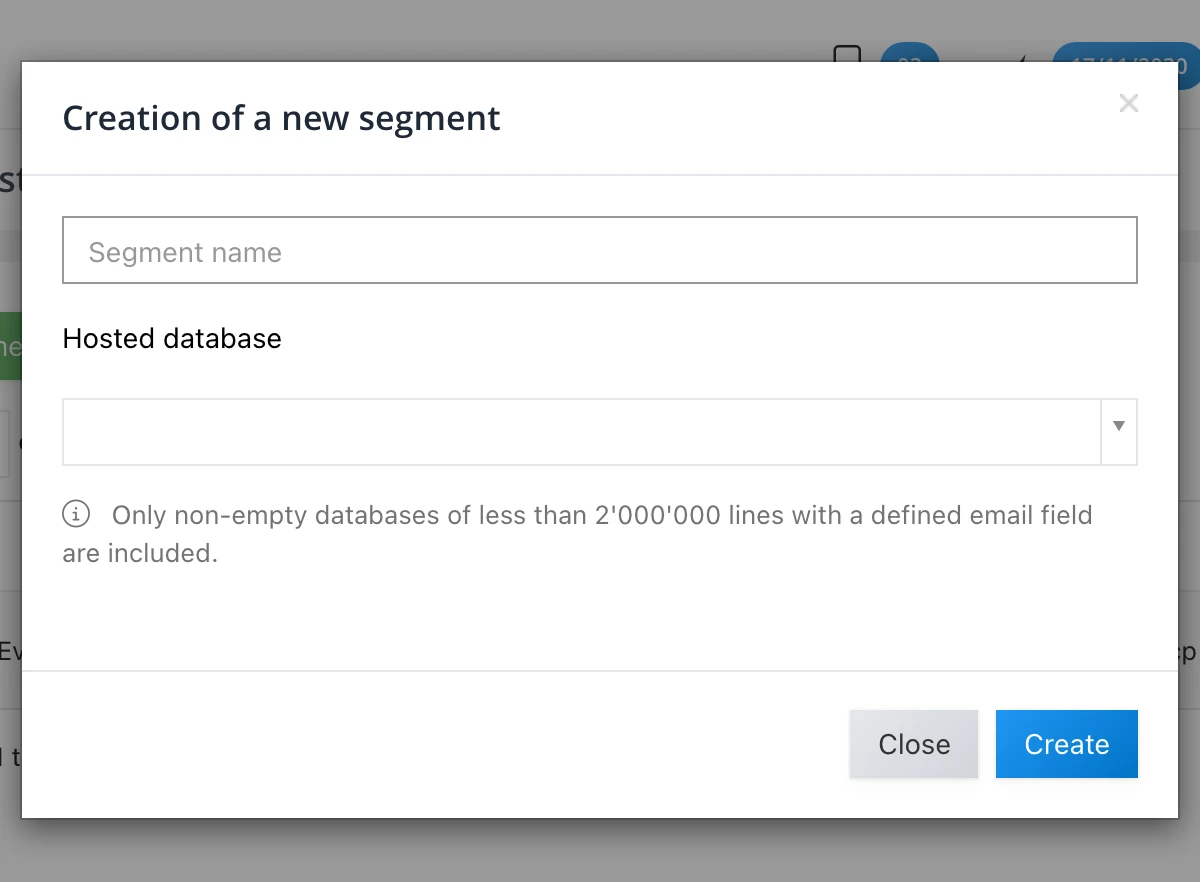
Once the segment is created, you must select one of the criteria in your database (the one that will allow the selection you want).
If this one does not appear, it means that the search on this field should not have been activated. You can change this by following the link under the criteria selection table.

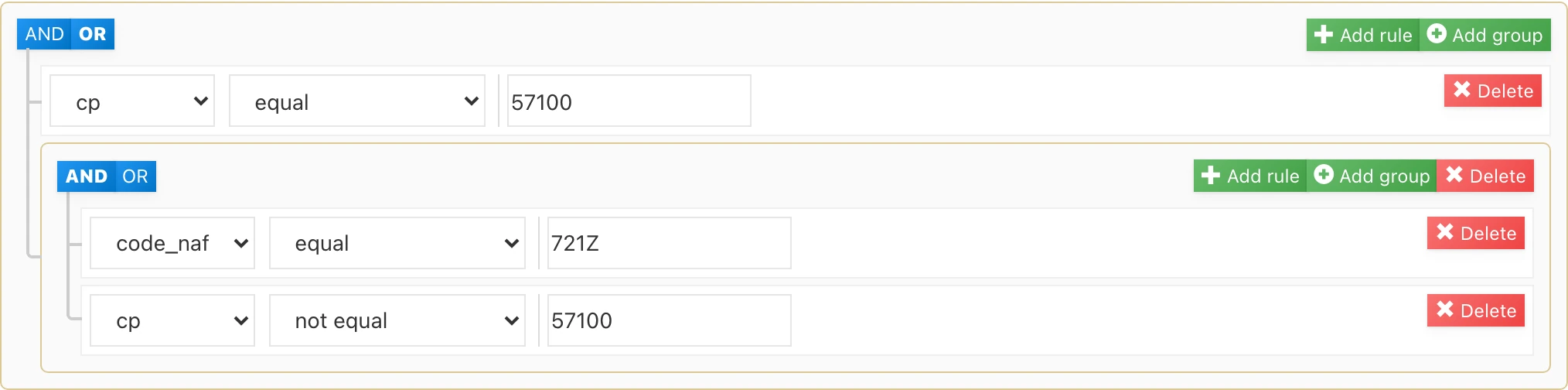
To make your selection, you can choose if your contacts must match all the criteria by leaving the “and” selected. Or you can press “or”. Thus, your contacts will have to meet either criterion 1 or criterion 2. (1)
To add another criterion you must click on “add a rule” or “add a group”. (2)
If you add a rule, it will set up the addition of a simple criterion.
If you add a group, this will allow you to include two criteria at once.
The example below illustrates the creation of a segment for women living in Paris or Nantes. There is a first simple criterion: is not equal to “Sir”. This allows you to select contacts with “madam” and “miss” as their title. Then there is a group in the second part to answer the criteria “Paris” or “Nantes”.
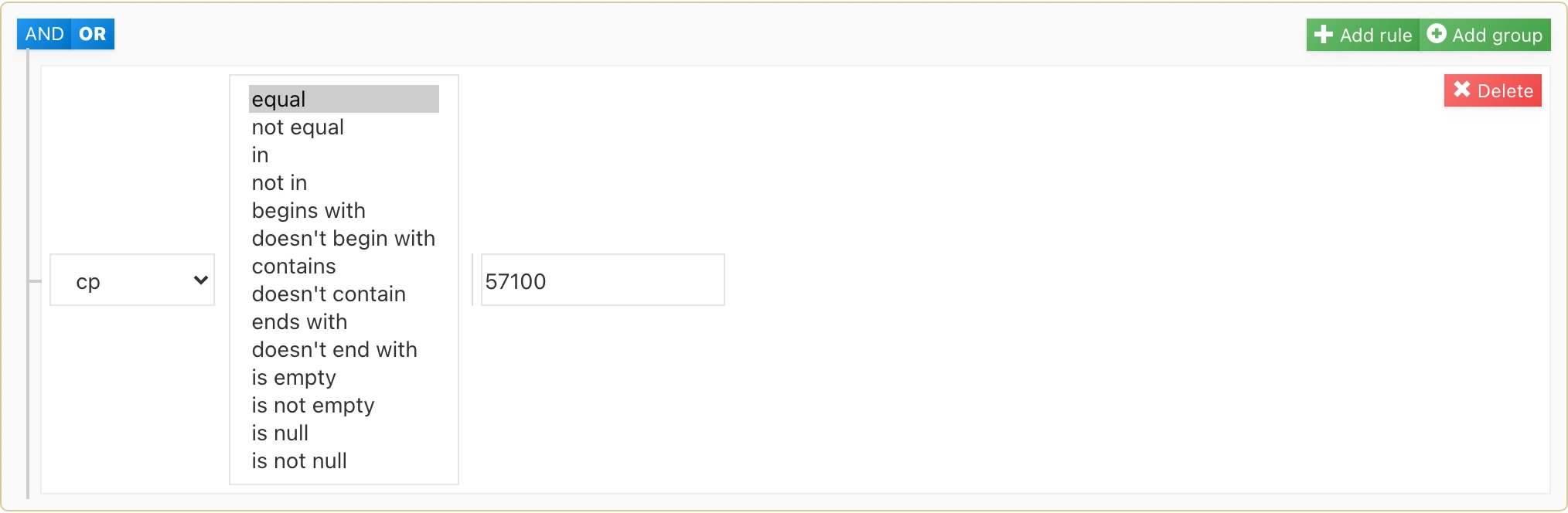
On the other hand, you have the possibility to select your criteria according to different modes.
At the bottom of your page, you can see the number of contacts that match your criteria.
You can also see it on your “segment” page in the “effective” column (1).
If you have changes in your database, you can quickly recalculate the number of contacts corresponding to your criteria by clicking on the second button of your line (2).

This post is also available in Français.