Integrate an application with Zapier
Zapier lets you connect an application with the Ediware platform without any programming. You can synchronize a contact list from the platform with over a thousand applications:
- CRMs (Microsoft Dynamics CRM, Sales Force, Hubspot, Sugar CRM, VTiger, Zendesk, etc.)
- form systems (Gravity Forms, Wufoo, Google Forms)
- contact managers (Google Contacts, Act! 365, Hunter, …)
- databases (MySQL, PostgreSQL, Zoho, MongoDB, Active Directory, SQL Server, Oracle, …)
Getting started
Go to your account management page
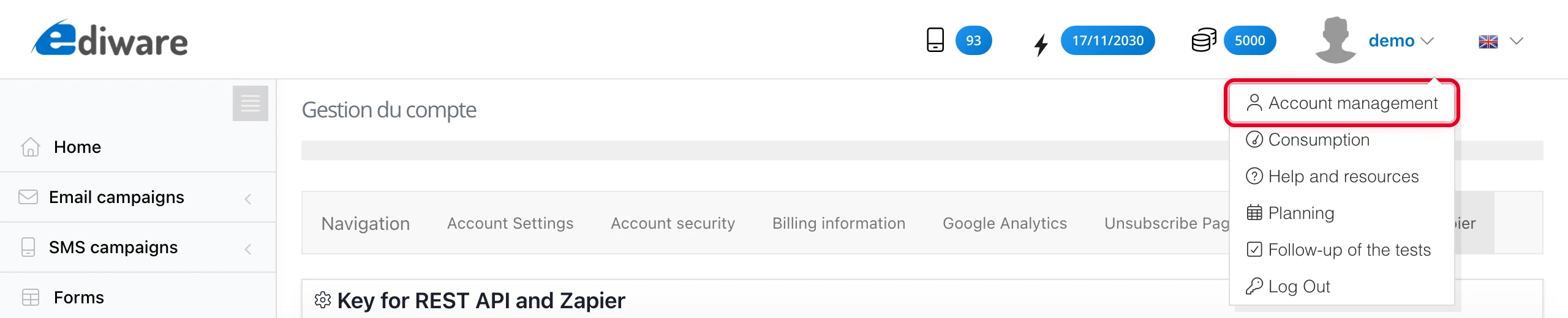
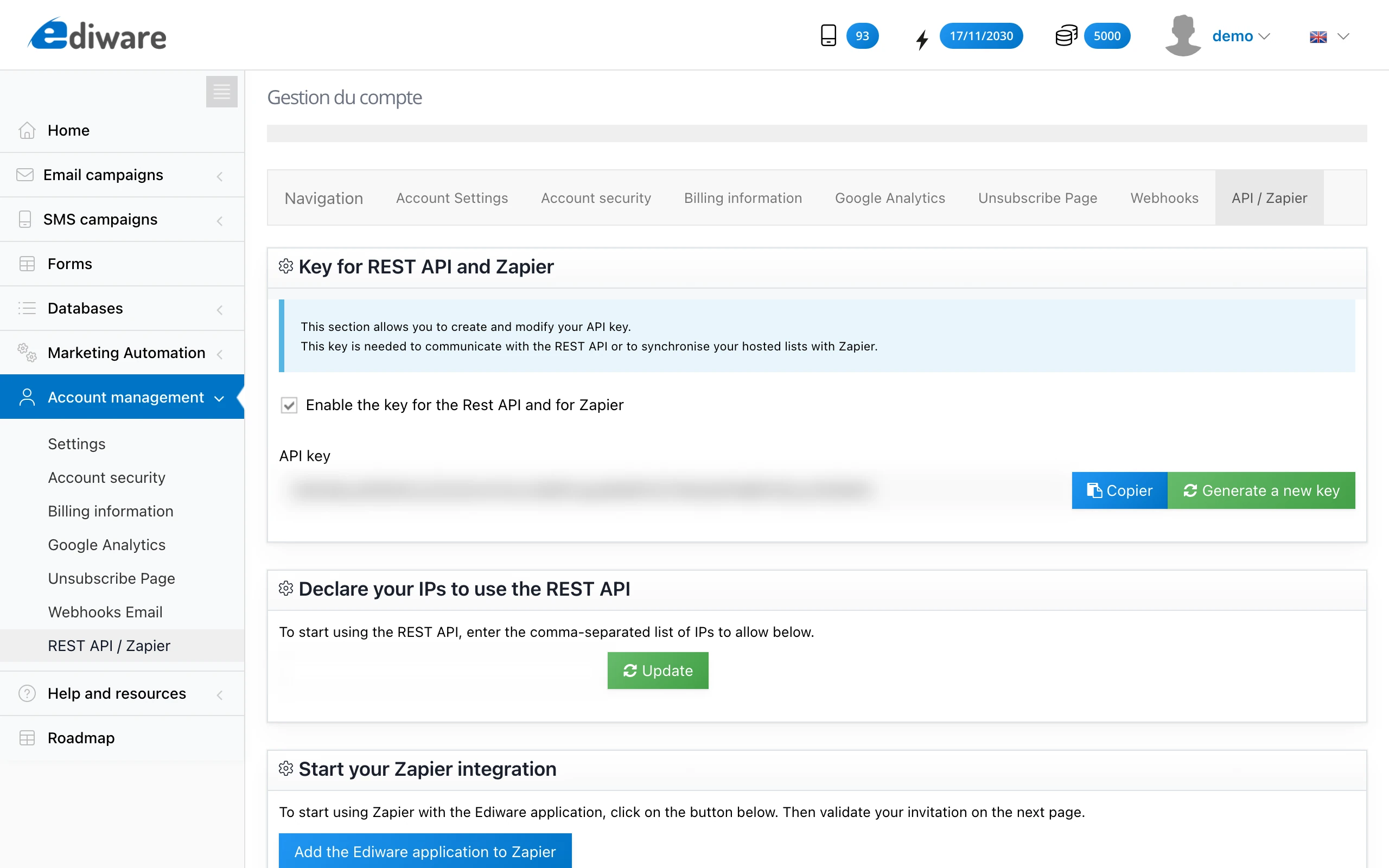
Then to the “Zapier” page. Enable the API key for Zapier and copy it; you will need it for the rest of this guide.
Set up the connection with Zapier
To set up a new synchronization with an application via Zapier, log in to your Zapier account and click “Make a Zap”.

Sync data from the Ediware platform to another application
The “Trigger” is set off by an event that happens on the source application. In our case, it’s the addition, modification or removal of a contact in a list hosted on the Ediware platform.
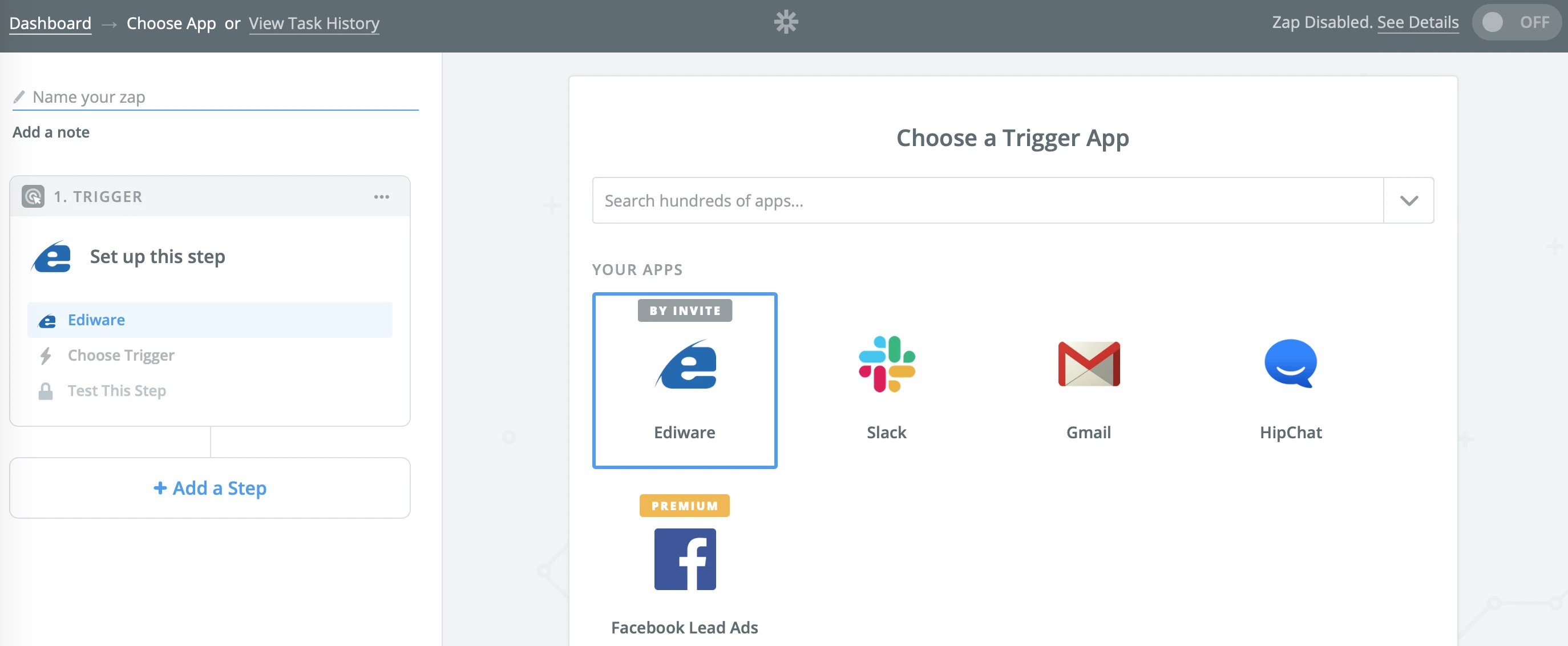
Select “Ediware” as the trigger. If you can’t find it, ask the support team (support@ediware.net) for an invitation, making sure to specify the email address used to open your Zapier account.
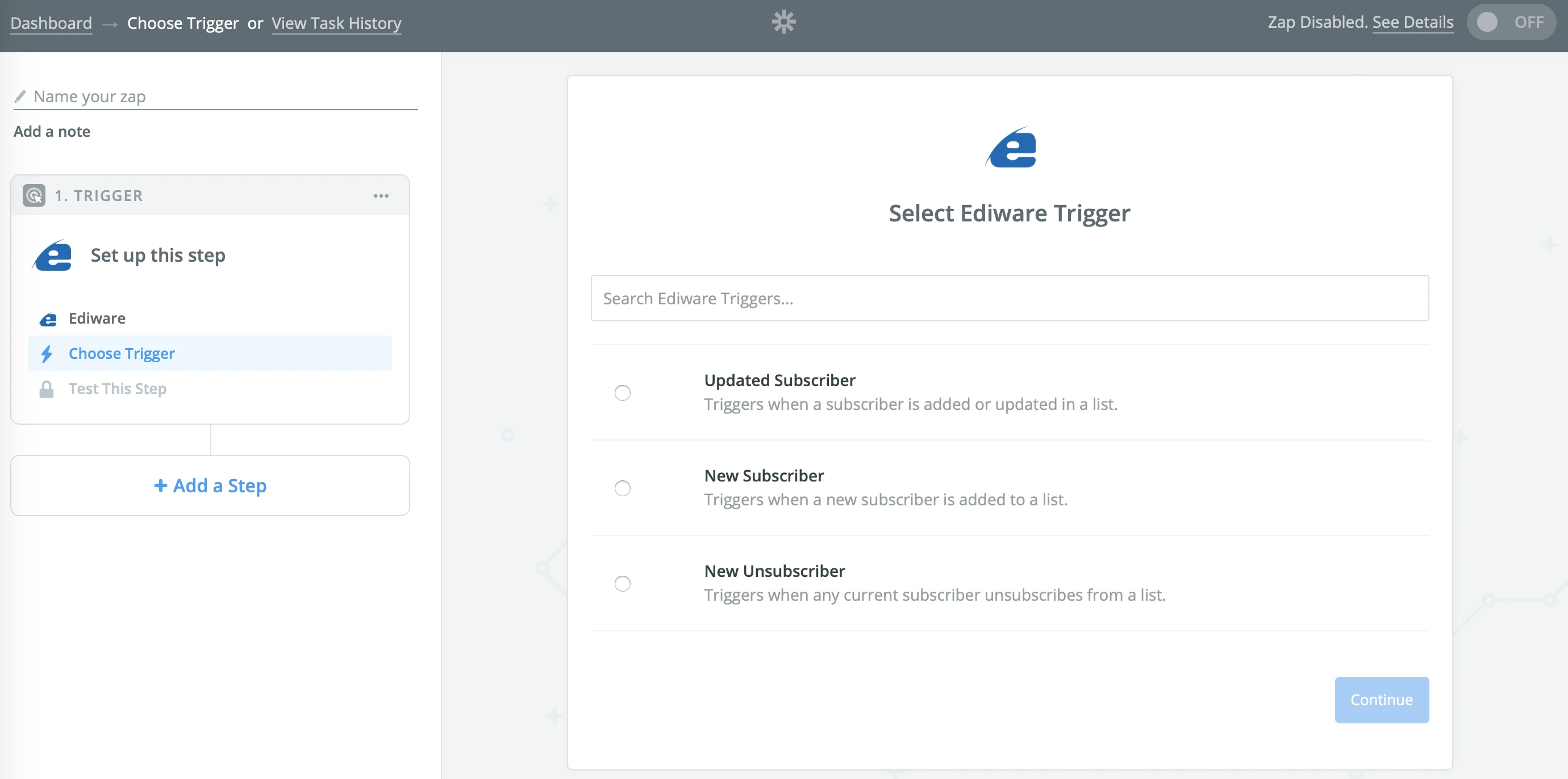
Then select the desired event: addition, removal or modification of a contact in a list hosted on the Ediware platform.
If this is your first Zap with the Ediware application, enter the API key copied above:
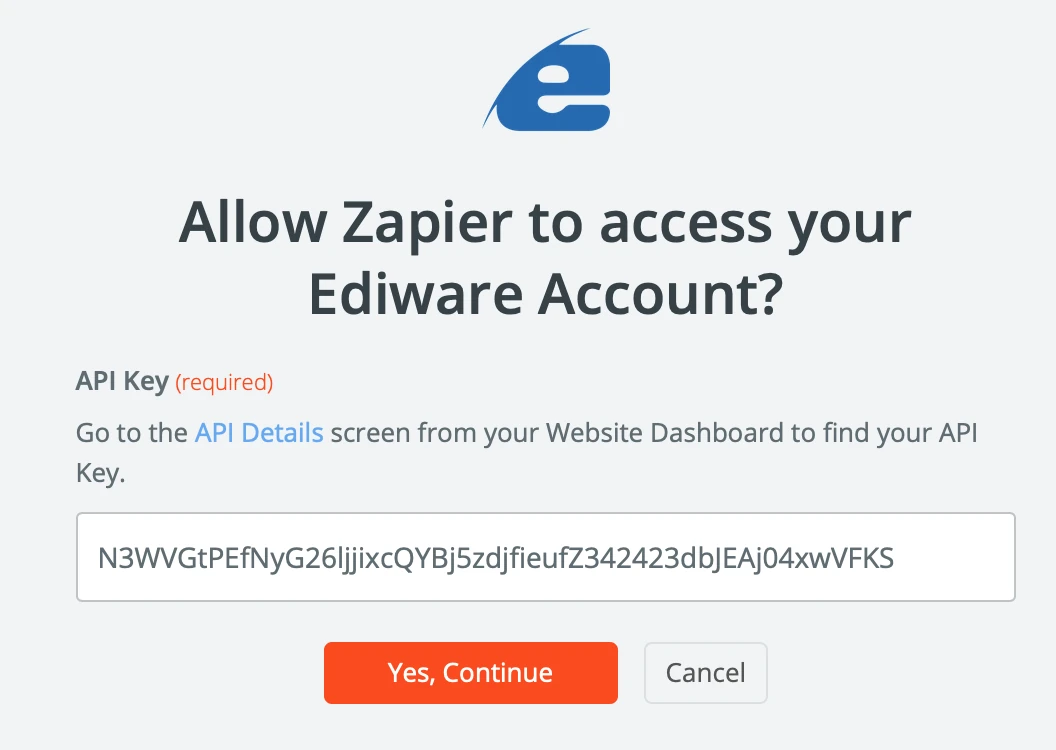
If the key is recognized, your account will be available once validated:

On the next page, select the contact list you want to synchronize.
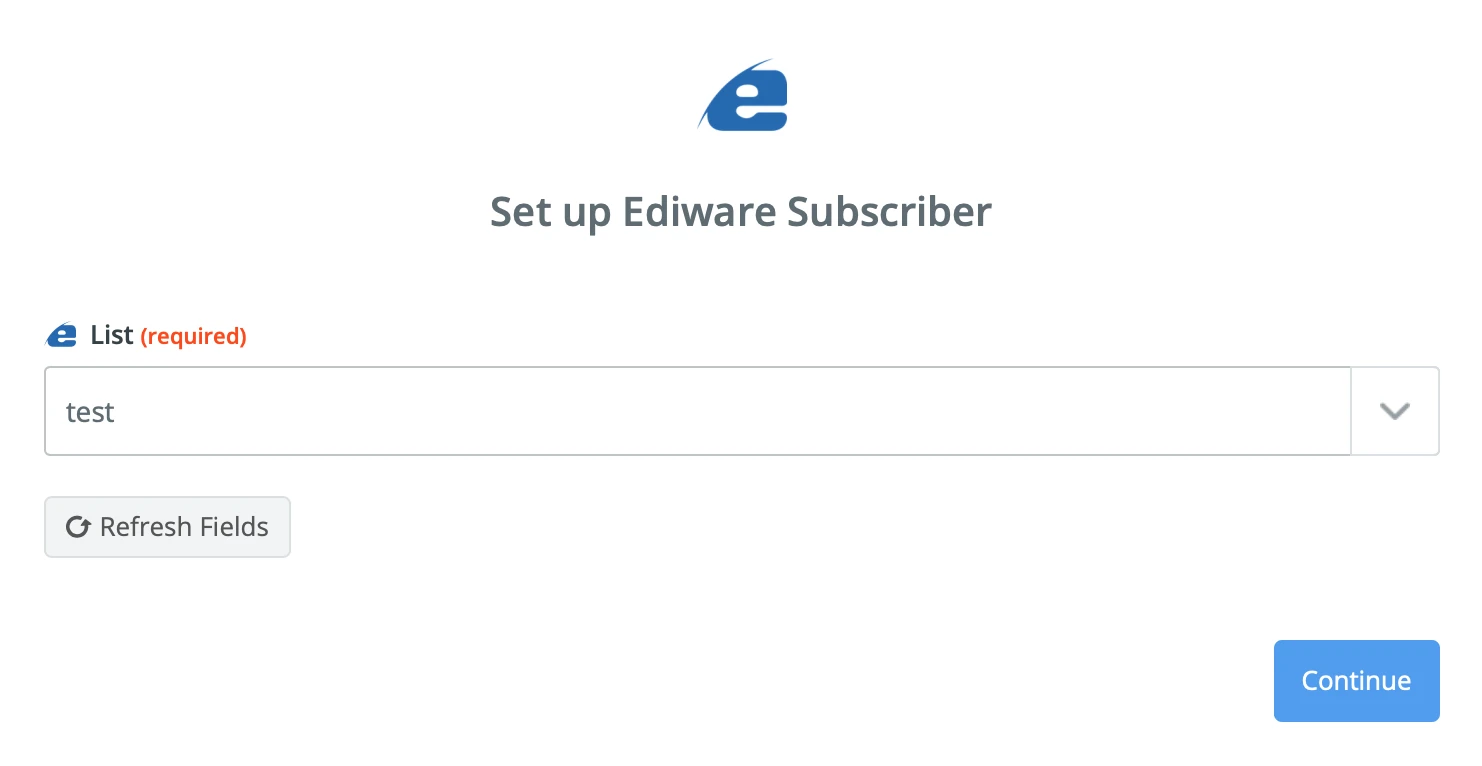
Check that your data is correctly displayed, then confirm.
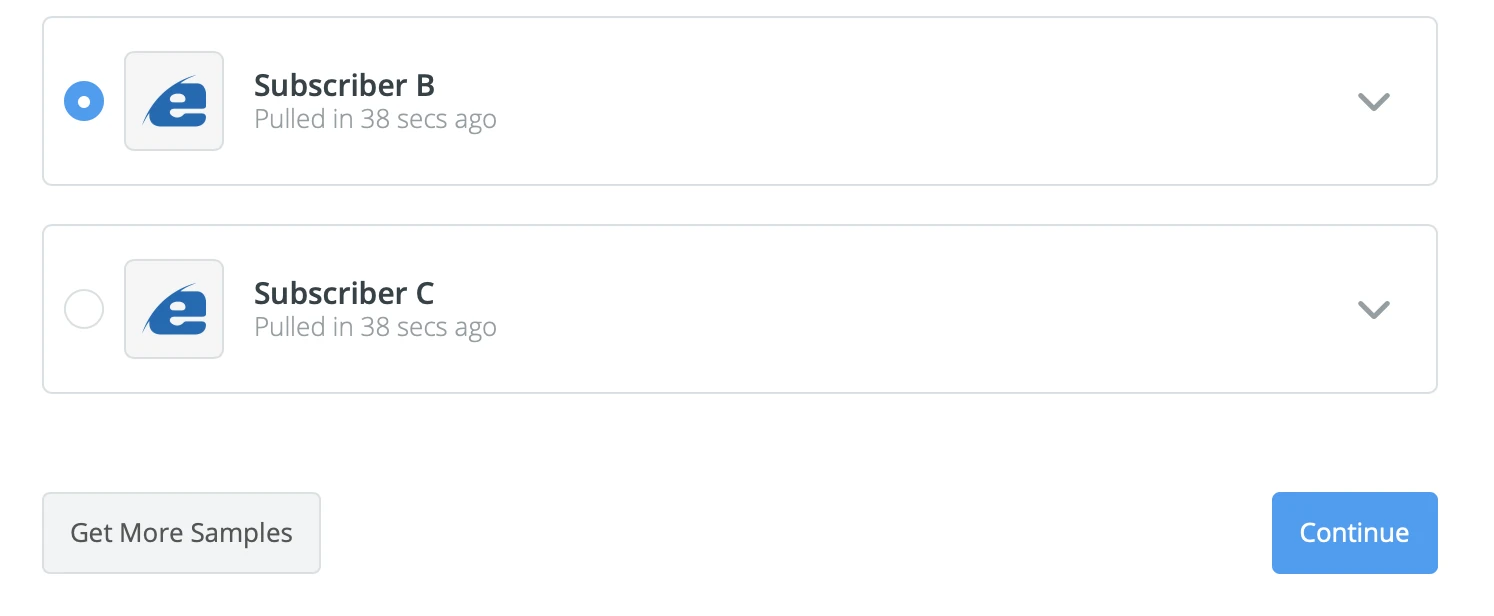
Your “Trigger” is ready. All you have to do next is pick a destination application to act on the events that happen in the list hosted on the Ediware platform.
Sync data from an application to the Ediware platform
In this case, the goal is to forward events from a third-party application to a contact list on the Ediware platform.
To get started, select the desired application; we’ll use Excel as an example. Follow the steps to connect your Office 365 account or any other application you want to connect.
Select a trigger for this first step. “Triggers” are the events for which you want to generate an action in the target application. In our example, we want to add a contact to a list hosted on the Ediware platform when a new row is added in an Excel file.
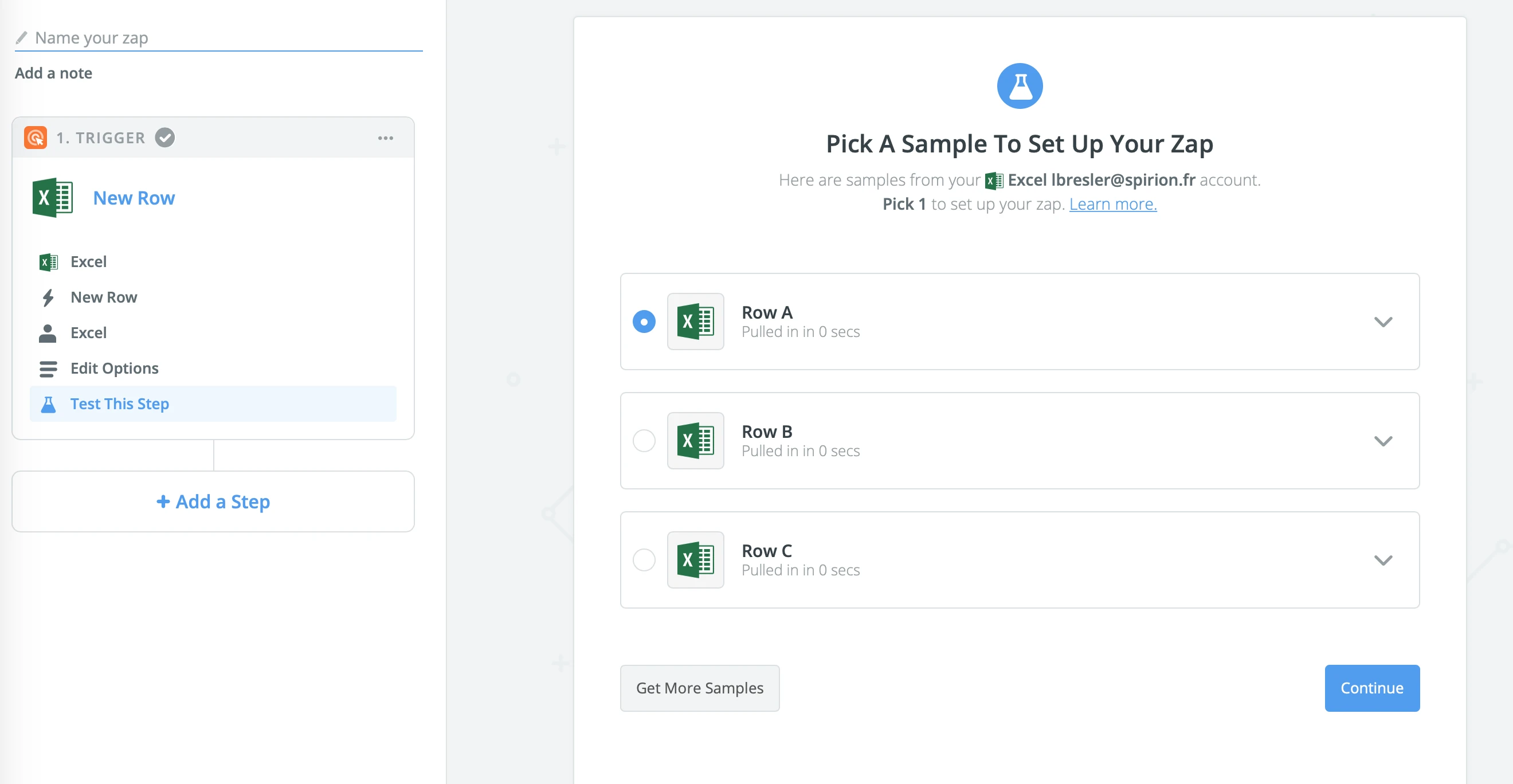
Once this step is done, add a step to determine which action to perform in the email-marketing platform. In our example, we choose to add a contact.
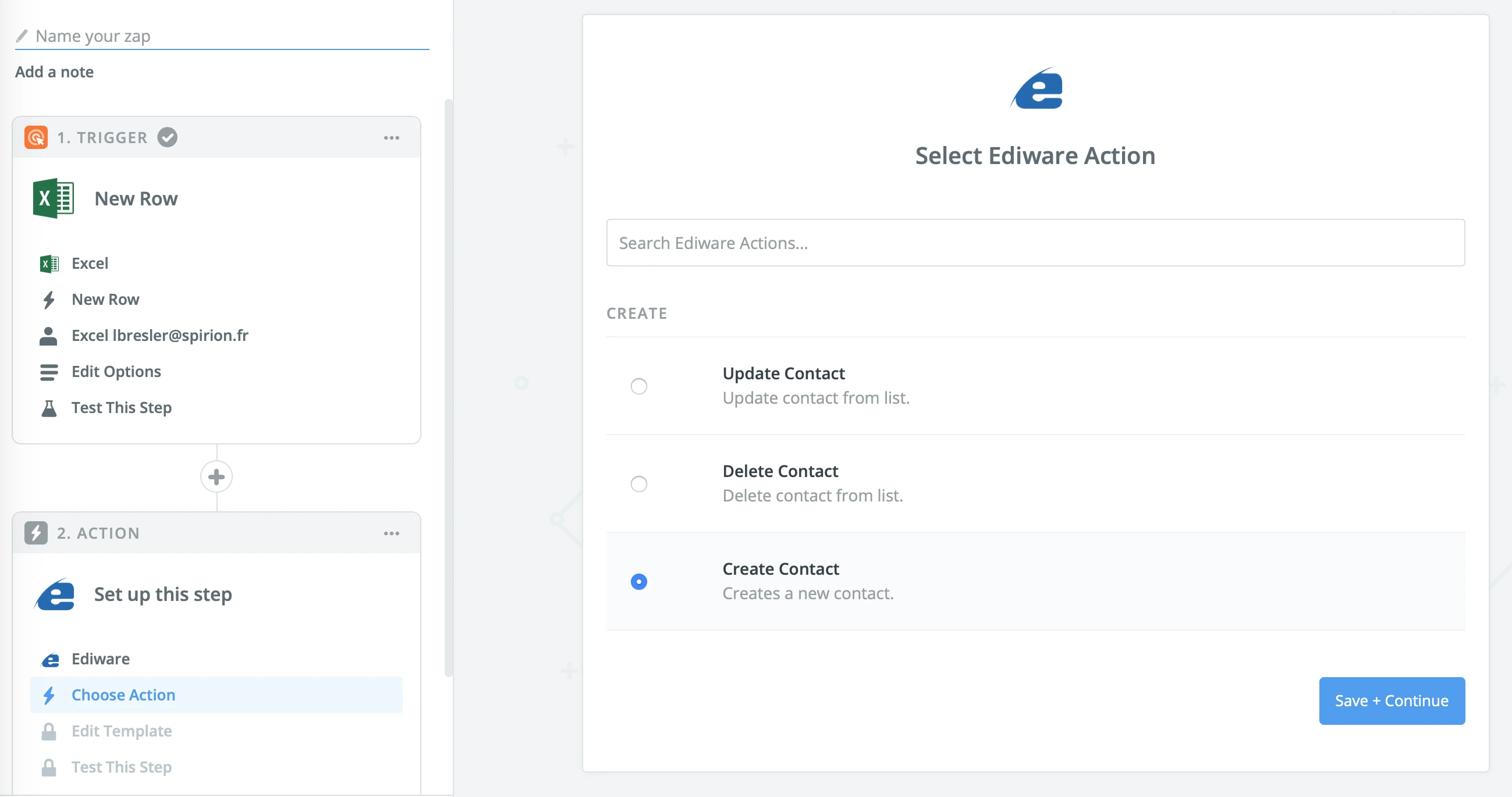
Then follow the different steps. You will be asked to map the fields between the source application data and the list hosted on the platform.
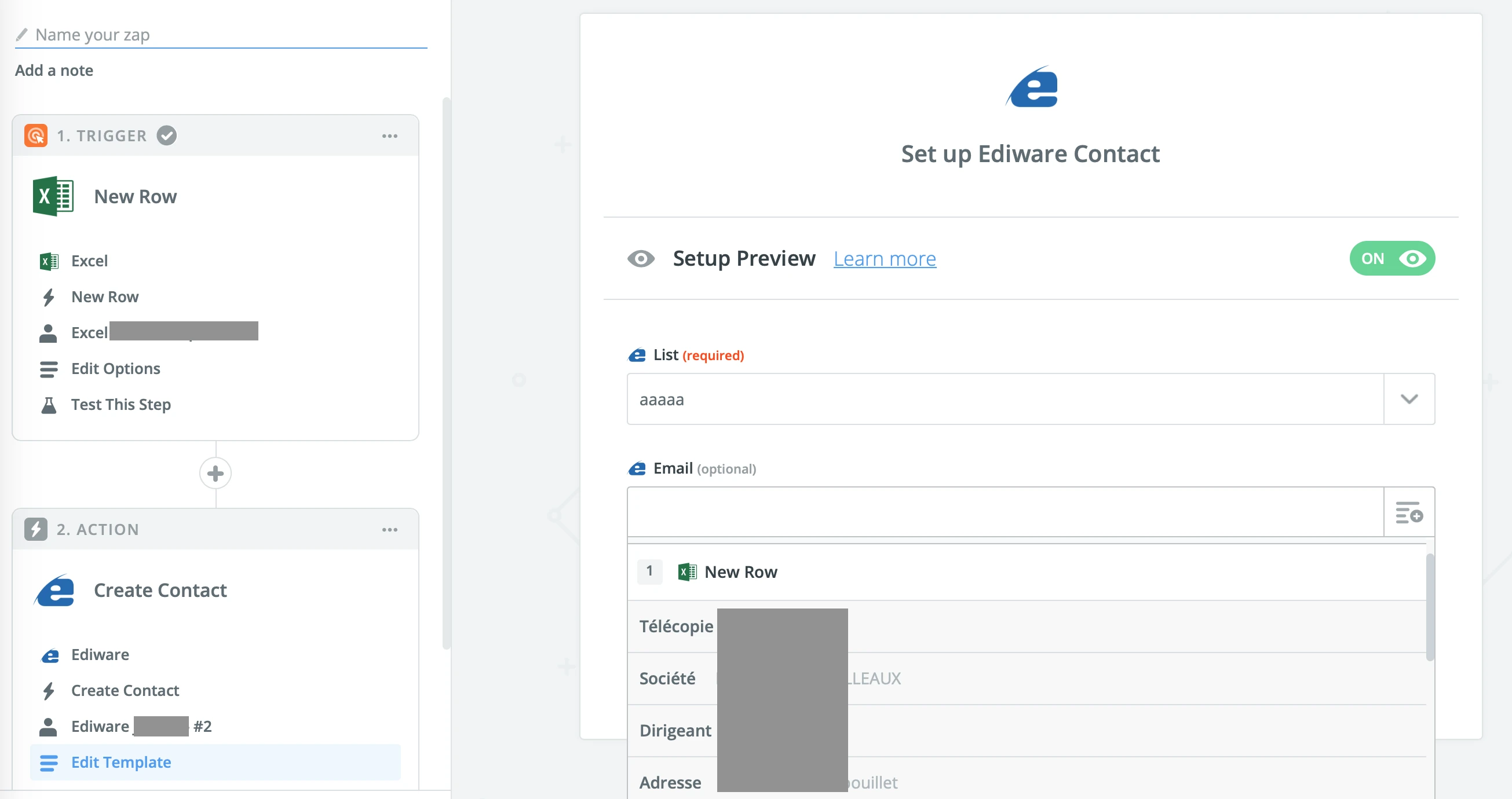
All that’s left is to test and activate your Zap.